The CRM itself is in Danish, so the names of buttons and pages are given in Danish below, with the English meaning in brackets the first time.
Getting started
What is Enkel visning (simple view)?
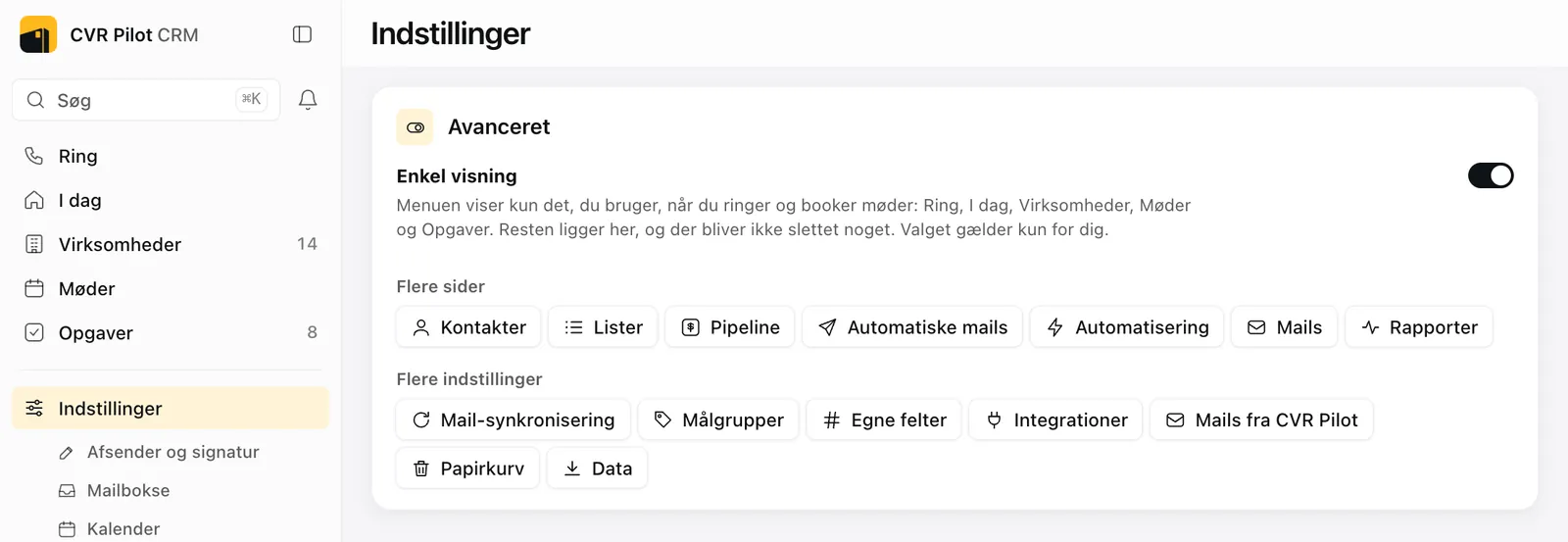
Enkel visning is a menu for people who call and book meetings. It shows Ring (Call), I dag (Today), Virksomheder (Companies), Møder (Meetings), Opgaver (Tasks) and Indstillinger (Settings). On a phone, Ring, I dag, Virksomheder and Møder sit at the bottom, and Opgaver and Indstillinger are under Mere (More).
The rest of the CRM is still there. Contacts, lists, pipeline, automatic mails, automation, mails and reports are under Indstillinger → Avanceret (Settings → Advanced), and nothing is deleted when you switch the view on or off. If your workspace uses automatic mails or an automation, they stay in the menu.
Members get Enkel visning from the start, and so does the owner of a new workspace. You switch it on and off under Indstillinger → Avanceret, and your choice only applies to you.
Who can do what? Owner and member
A workspace has two roles. Both can work with companies, contacts, lists, deals, tasks, notes, mails, automatic mails and imports, and both can restore from the trash. Everyone connects their own mailbox and edits their own profile, signature and morning mail.
The owner can also save settings for the whole workspace (sender, mail sync, calendar, phone, target groups, custom fields and integrations), invite and remove users, approve automatic mails, delete permanently from the trash and empty it. A member can read those settings but not save them. Each of those pages says so at the top.
You invite a colleague under Indstillinger → Brugere (Users): enter the e-mail address, choose Medlem (member) or Ejer (owner) and click Invitér.
Calling and booking meetings
How do I start a calling round?
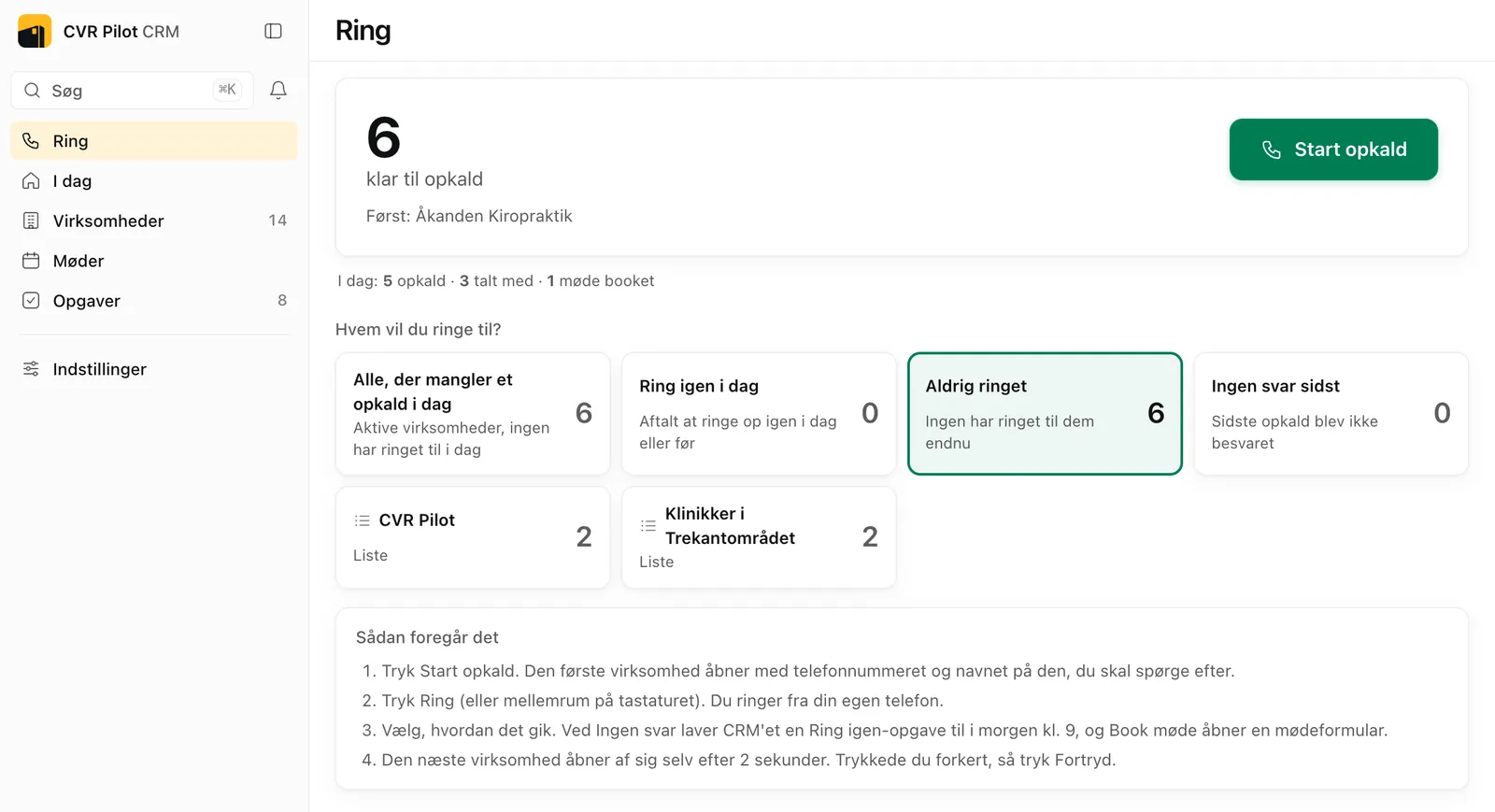
Click Ring in the menu, choose who to call and click Start opkald (Start calling). The big number shows how many are ready on the list you picked, and the first company's name is below it.
There are four fixed lists: everyone not yet called today, call back today, never called and no answer last time. Your own lists are below them, for example the leads that came from CVR Pilot. If you are several users, Mine shows only the companies you are responsible for.
You can also call through a filtered view. Filter the list under Virksomheder and click Ring til listen (Call this list).
What does the call bar show?
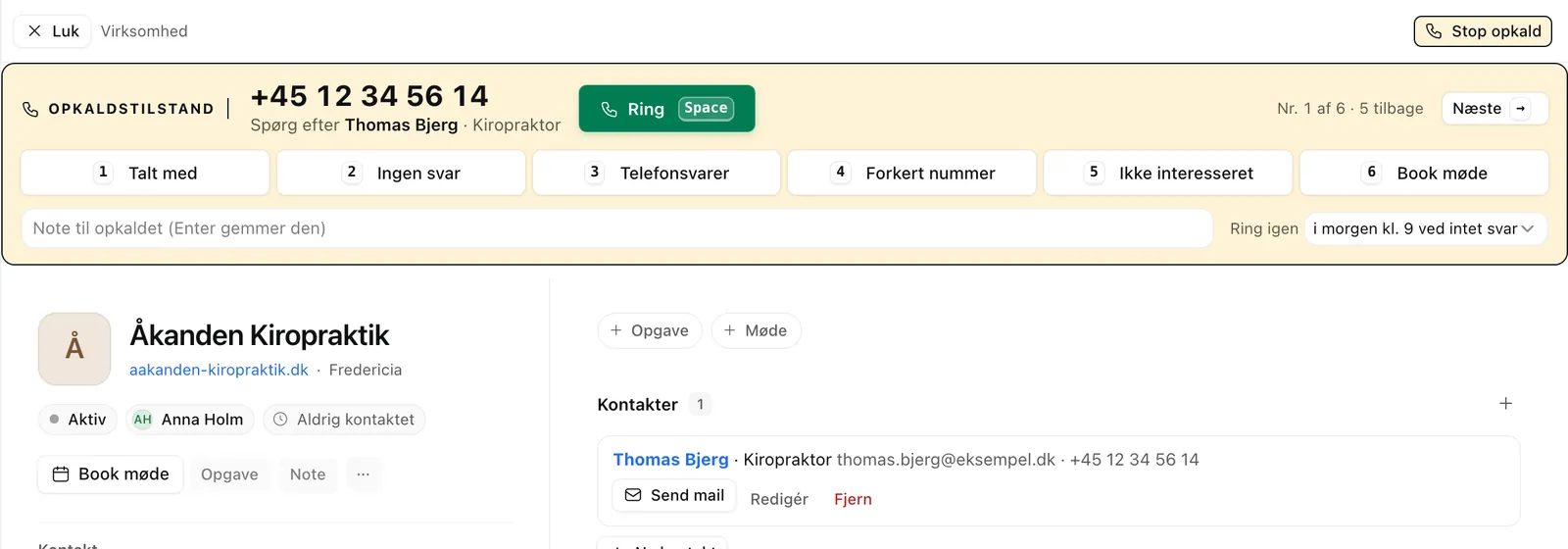
After Start opkald, the first company opens with a yellow bar at the top. It shows the phone number and who to ask for, with name and title. On the right it shows where you are on the list, for example "Nr. 1 af 6 · 5 tilbage" (no. 1 of 6, 5 left).
Click Ring or press the space bar. You call from your own phone, and it costs nothing extra. On a Mac you can call through your iPhone. The steps are under Indstillinger → Telefon (Phone).
When the call is over, choose how it went with the buttons or the keys 1 to 6:
| Key | Outcome | What happens |
|---|---|---|
| 1 | Talt med (Spoke to) | You reached someone. |
| 2 | Ingen svar (No answer) | Counts an attempt and creates a call-back task. |
| 3 | Telefonsvarer (Voicemail) | Counts an attempt and creates a call-back task. |
| 4 | Forkert nummer (Wrong number) | Counts an attempt. |
| 5 | Ikke interesseret (Not interested) | The company is marked Ring ikke (do not call) and skipped next time. |
| 6 | Book møde (Book meeting) | Opens Book møde. The call is saved when the meeting is saved. |
You can add a note to the call in the field under the buttons. Næste (Next), or the right arrow key, jumps to the next company without choosing an outcome.
How does Ring igen (call back) work?
The Ring igen field is set to "tomorrow at 9 if there is no answer" by default. If you choose Ingen svar or Telefonsvarer, the CRM creates a task for you to call again the next working day at 09:00. You can also choose tomorrow at 9, in 2 hours, next week or no. A choice made here also applies when you choose Talt med.
The companies appear on the list Ring igen i dag (call back today) on the day the task is due.
I clicked the wrong outcome. Can I undo it?
Yes. After you choose an outcome, the CRM waits 2 seconds before saving it, and then the next company opens by itself. During those 2 seconds a message at the bottom shows a Fortryd (Undo) button. If you click it, nothing is saved and you can choose again.
How do I book a meeting?
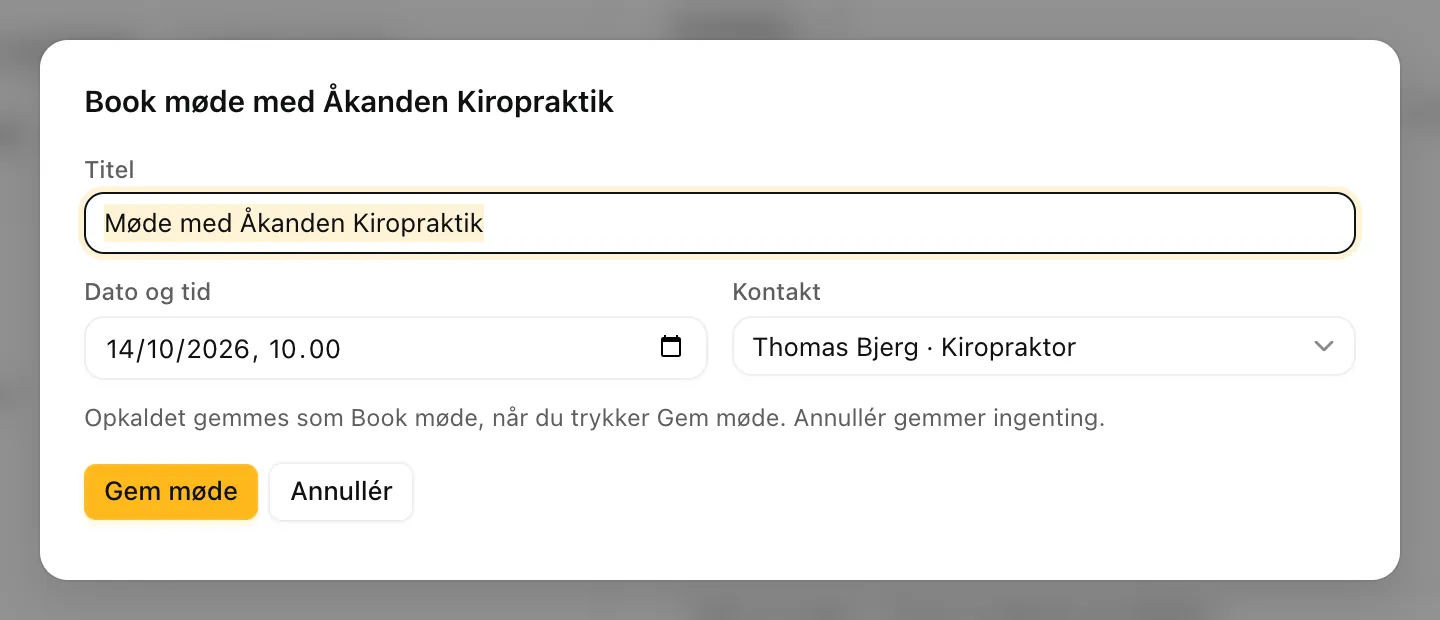
Press 6 or click Book møde in the call bar. A small form opens with a title, date and time, and the contact you spoke to. The time is set to the next working day at 10:00, so you usually only change the date and time.
The call is saved as Book møde when you click Gem møde (Save meeting). If you click Annullér (Cancel), neither the meeting nor the call is saved. After a booked meeting the next company opens after 2 seconds, unless you click Bliv her (Stay here).
You can also book a meeting outside a calling round with the Book møde button on the company's page.
Your day
What is on I dag (Today)?
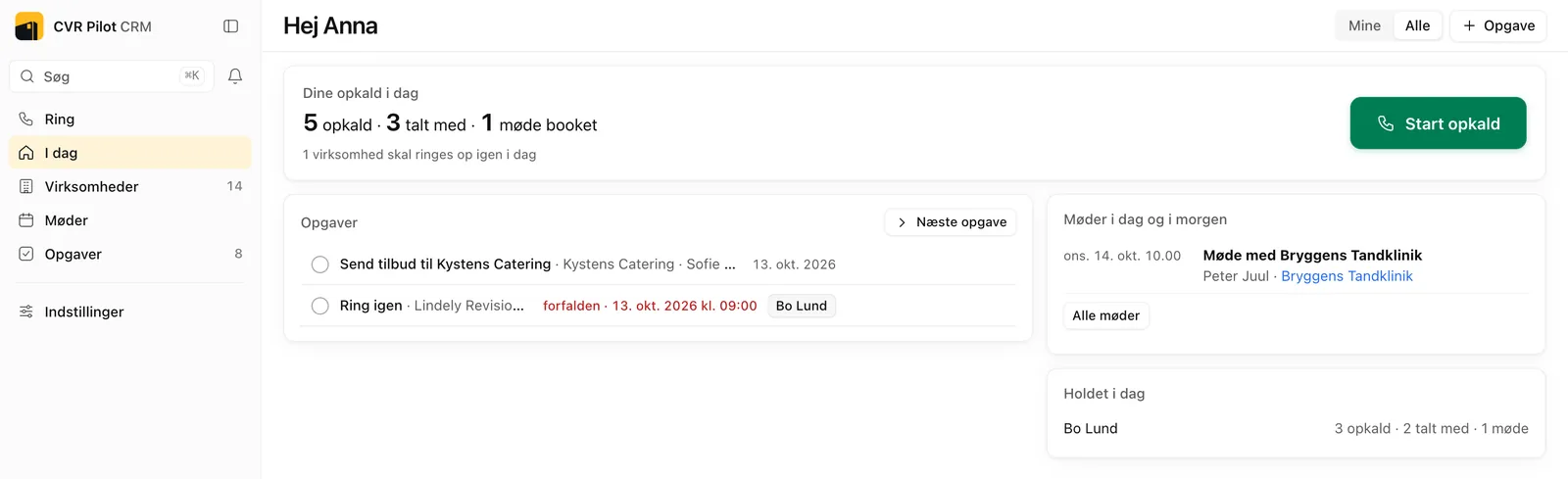
I dag is the home page in Enkel visning. At the top are your calls today: how many you have made, how many people you spoke to and how many meetings you booked. The button says Start opkald, or Fortsæt opkald (Continue calling) if you have already called today, so you carry on where you stopped.
Below are today's and overdue tasks, the meetings today and tomorrow, and what the rest of the team has done today. Mine and Alle (All) at the top right switch between your own and everyone's tasks.
How do I work with tasks?
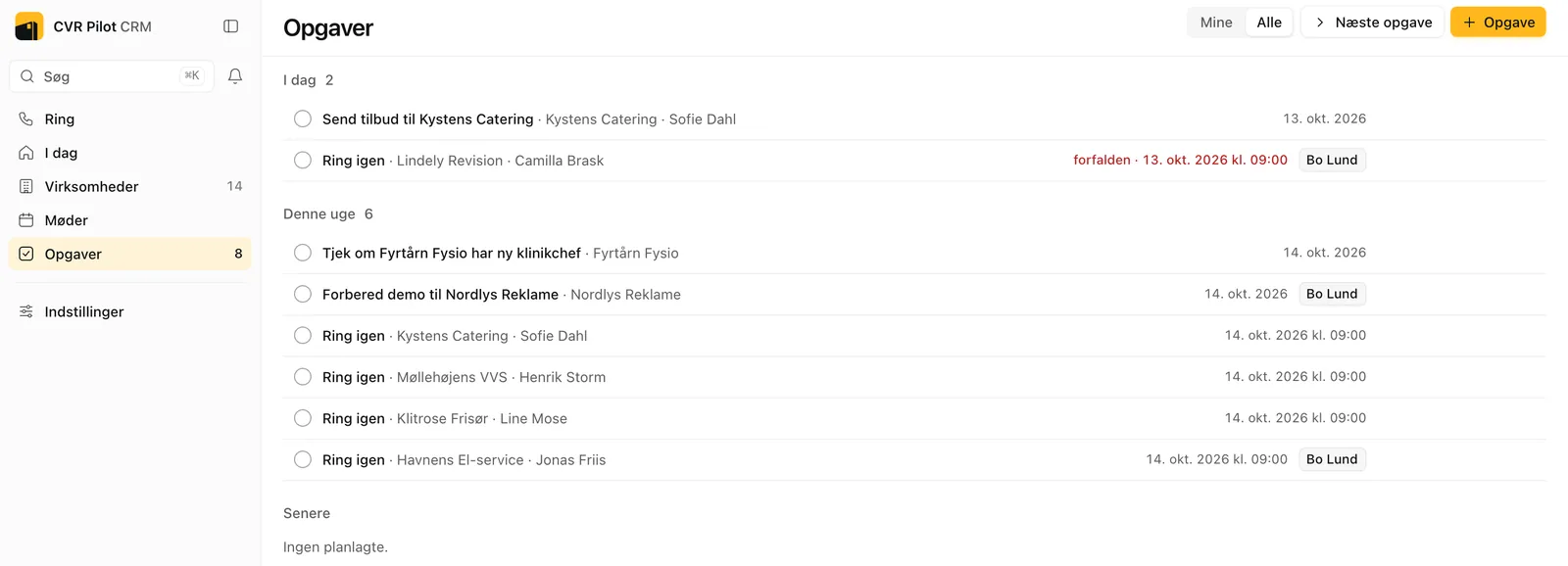
Opgaver collects everything to be done, split into today, this week and later. Overdue tasks are shown in red. Tick a task when it is done. Næste opgave (Next task) opens today's tasks one at a time.
A task can have a due date with a time, an assignee and a company or contact. If it can't be done today, postpone it to tomorrow, in 3 days, next Monday or a date you choose.
To get your tasks by e-mail, choose every morning or Monday morning and a time under Indstillinger → Mails fra CVR Pilot (in Enkel visning through Avanceret).
What does Møder (Meetings) show?
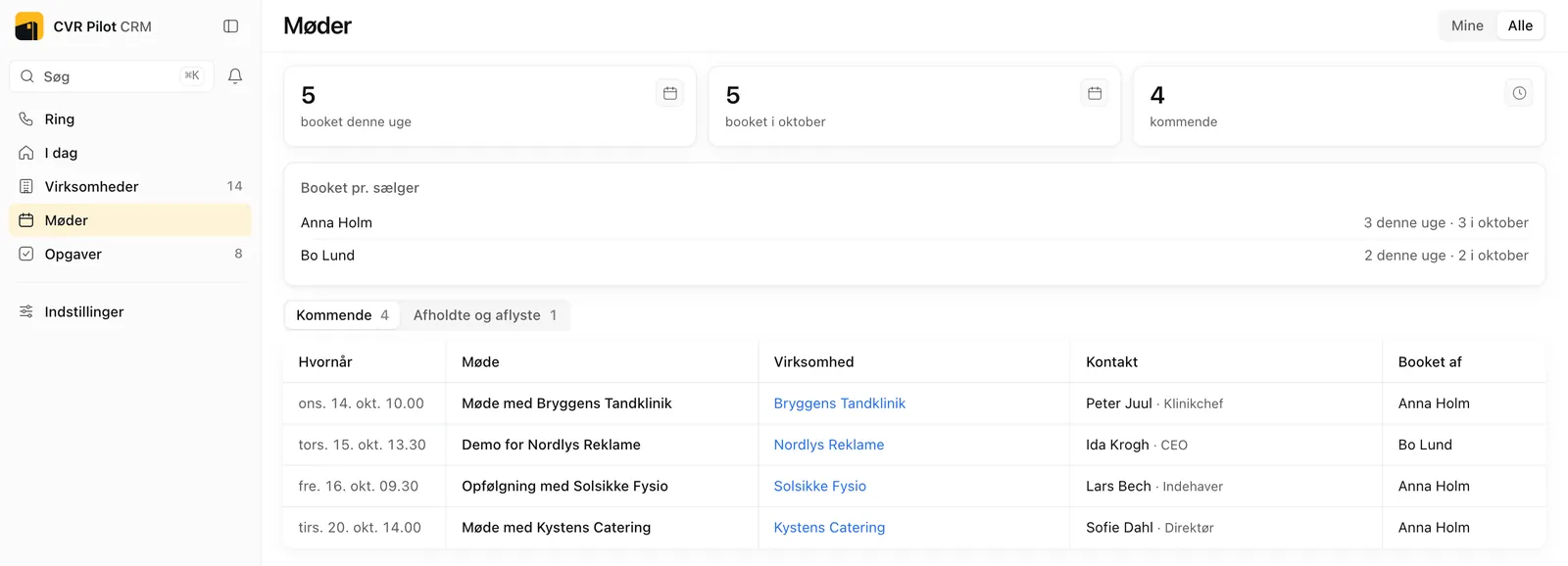
Møder shows how many meetings were booked this week and this month, and how many are coming up. A meeting counts in these numbers on the day it is booked. If you are several users, it also shows how many each rep booked.
The tabs switch between upcoming meetings and held and cancelled ones. Click a row to open the company.
Companies and leads
What is on Virksomheder (Companies)?
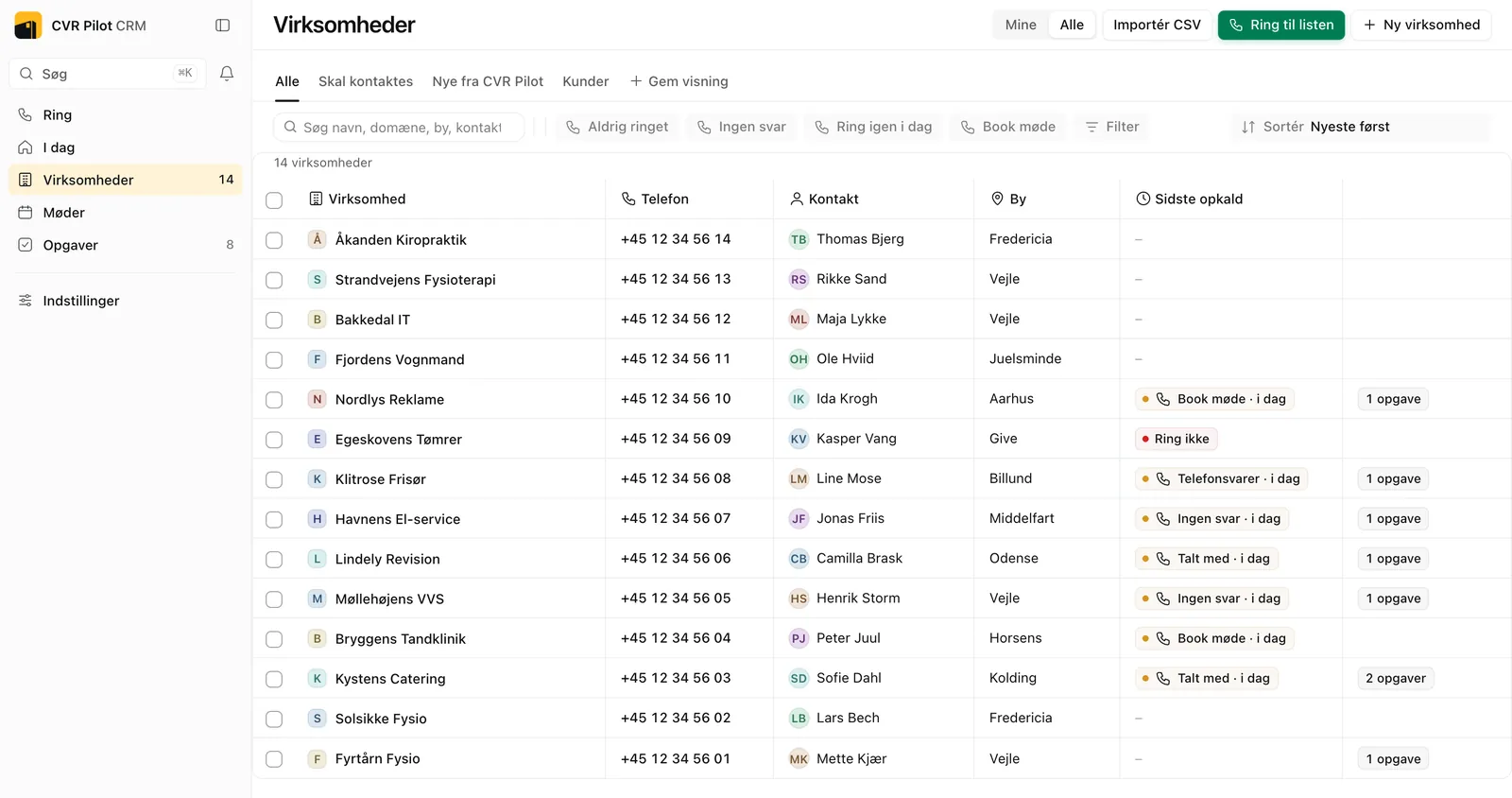
In Enkel visning the list shows what you need before you call: name, phone, contact, city and last call. The tabs at the top are saved views, for example Nye fra CVR Pilot (new from CVR Pilot). The buttons above the list filter on never called, no answer, call back today and meeting booked.
Tick several companies to add them to a list, set a target group or an owner, or delete them. You create new companies with Ny virksomhed (New company) or Importér CSV.
What can I do on a company's page?
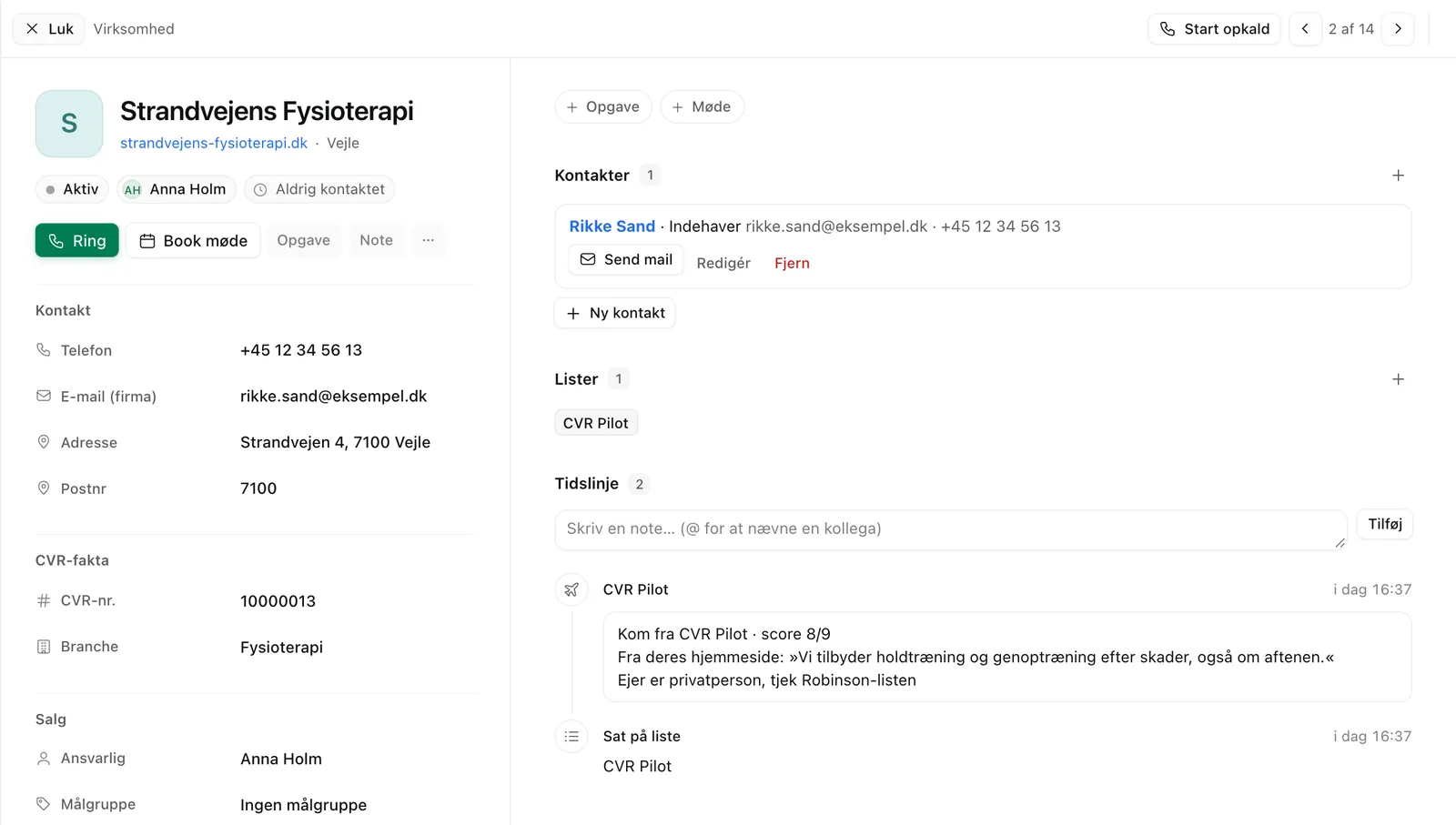
At the top are the actions you use most: a green Ring, Book møde, Opgave (Task) and Note. The rest is under … (More), for example writing an e-mail, creating a deal, adding the company to a list or blocking it in mail sync. Ring is grey if there is no phone number on the company or its contacts.
The left side shows contact details, CVR facts and who is responsible. The right side shows the contacts, the lists and the timeline with notes, calls, e-mails and meetings, newest first. Start opkald at the top right starts a calling round from the list you came from.
How do leads from CVR Pilot Leads arrive?
When the CRM is part of your plan and you send leads to the CRM from Leads, they arrive by themselves. Each lead becomes a company with a contact person, phone, address and CVR number, and it is put on the list CVR Pilot and in the view Nye fra CVR Pilot.
The timeline has a note with the fit score, the sentence from the company's own website and, where it applies, the reklamebeskyttelse (the Danish CVR marketing opt-out). The note is in Danish:
- Reklamebeskyttet i CVR, nummeret står på egen hjemmeside: må ringes til. Opted out in CVR, but the number is on the company's own website, so you may call it.
- Reklamebeskyttet i CVR: må ikke kontaktes med registerdata. Opted out in CVR and the details come from the register. A new company with this note gets the status Må ikke kontaktes (do not contact).
- Ejer er privatperson, tjek Robinson-listen. The owner is a private person, so check the Robinson list. It appears on, for example, sole proprietorships.
Under CVR facts you can always see whether the company has opted out. Read more about the rules in our guide to reklamebeskyttelse (Danish).
Mail and calendar
How do I connect my e-mail?
Go to Indstillinger → Mailbokse (Mailboxes). Each user connects their own. Click Forbind Gmail or Forbind Outlook (Microsoft 365) and sign in, and the CRM sends from your own address. If you use another provider, you can connect it with IMAP. IMAP only fetches mail, so you can't send from it. Most providers require an app password for IMAP.
What is mail sync, and how do I keep private mail out?
The CRM keeps fetching new mail and puts it on the contact and company the address belongs to. That covers both mail you receive and mail you send. Unknown senders are created as a contact and company, while newsletters and no-reply addresses are skipped.
Under Indstillinger → Mail-synkronisering (Mail sync) you list domains and addresses that should never be fetched, one per line, for example gmail.com or your accountant's address. A domain also covers its subdomains. The same page lets you pause syncing and remove mail already fetched from blocked senders. On a company's page you can block its domain under More. In Enkel visning, Mail-synkronisering is under Avanceret.
What are automatic mails?
Automatic mails (Automatiske mails) are a series of steps that run by themselves with a number of days in between. A step can be an e-mail, a call, a task or a LinkedIn task. E-mails go out from your own Gmail or Microsoft 365 mailbox within a send window and a daily cap, and the subject and text can use fields such as {{first_name}} and {{company}}.
The owner approves who is enrolled. The series stops for a contact who replies, unsubscribes or whose e-mail bounces, and it also stops when a meeting is booked with the company. Addresses on the suppression list and opted-out addresses from the CVR register are skipped.
In Enkel visning, Automatiske mails only appears in the menu when the workspace has an active series with contacts in it. Otherwise the page is under Avanceret.
How do my Calendly meetings get in?
The owner creates a Personal access token in Calendly (Integrations → API & webhooks) and pastes it under Indstillinger → Kalender (Calendar). After that the CRM fetches the bookings by itself. Each meeting is put on the contact with the e-mail address that booked it, and on that contact's company. If they don't exist, they are created. Cancelled meetings show as cancelled under Møder, and if the customer answers a phone number question in Calendly, the number is added to the contact.
The same page can also fetch meetings from Google Calendar, Microsoft 365 or an iCal address.
Users and trash
I deleted something by mistake
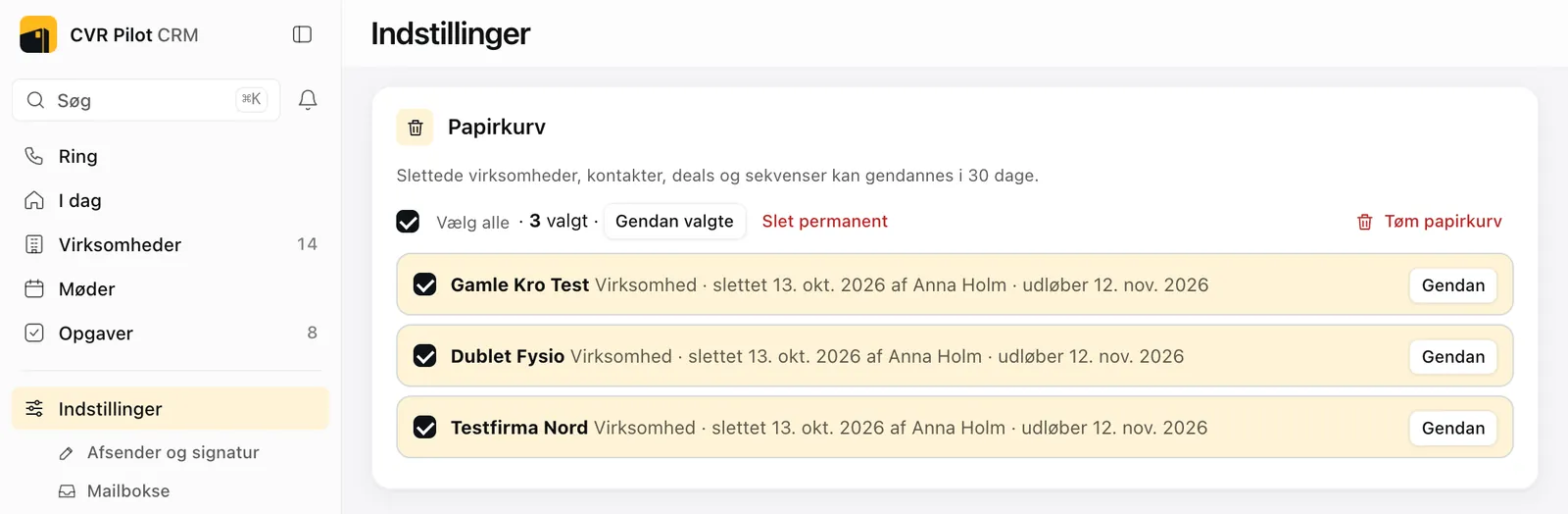
Right after a delete, a Fortryd (Undo) button shows at the bottom of the screen for 10 seconds. That also applies when you have deleted several companies at once from the list.
After that, deleted items stay in the trash for 30 days. Go to Indstillinger → Papirkurv (Trash; in Enkel visning through Avanceret), tick what you want back or click Vælg alle (Select all), and click Gendan valgte (Restore selected). The owner can also delete selected items permanently or empty the whole trash.
How do I contact support?
Click the question mark at the bottom left of the CRM, or write to support@cvrpilot.dk. We reply by e-mail, usually the same day. You can also book 30 minutes.